
WordPress AI crawler logs show which bots visited your site, what they requested, and whether they got a real page, a block, a redirect, or an error. If you can see the bot in the log, the response code and requested URL tell you a lot about whether AI systems can actually access your content.
If the bot never appears, or only sees blocked or empty pages, your content is probably not accessible in the way you want. The goal is not just to know that a crawler passed by, but to judge whether it reached the page text and can use it.
What are WordPress AI crawler logs and what do they show?
WordPress AI crawler logs are records of bot visits, including the crawler name, requested URL, time, and server response. They help you see whether an AI bot reached the page you wanted it to see or ran into a problem.
A useful log entry usually tells you four things at once: who requested the page, which page they asked for, when they came, and how the server replied. That makes it easier to separate a healthy crawl from a failed one.
If you are using AEO God Mode, the AI Crawler Log gives you a place to review this activity inside WordPress instead of piecing it together from raw server files. That is useful when you want to spot access problems quickly and keep your checks close to the content itself.
How to read WordPress AI crawler logs step by step
Start with the bot name, then check the URL, status code, and user agent. After that, look for patterns such as repeated 404s, 403s, redirects, or requests to pages that should not be indexed.
A simple example helps. If a crawler requests /pricing/ and the log shows a 200 response, that usually means the server served the page successfully. If the same bot requests /pricing/ and receives a 403, the page was denied. If it receives a 301 or 302, the bot was sent somewhere else first, which may be fine or may point to a setup issue.
Do not stop at a single entry. A crawler that hits several pages in a row and gets normal responses is a stronger signal than one isolated request. A bot that keeps bouncing between redirects or hitting missing pages is telling you something is wrong with the route, the access rules, or the page structure.
It also helps to watch for requests to URLs that should not matter. When a bot spends time on irrelevant paths, the problem may be internal linking, an old redirect, or a sitemap that still lists pages you no longer want to promote.
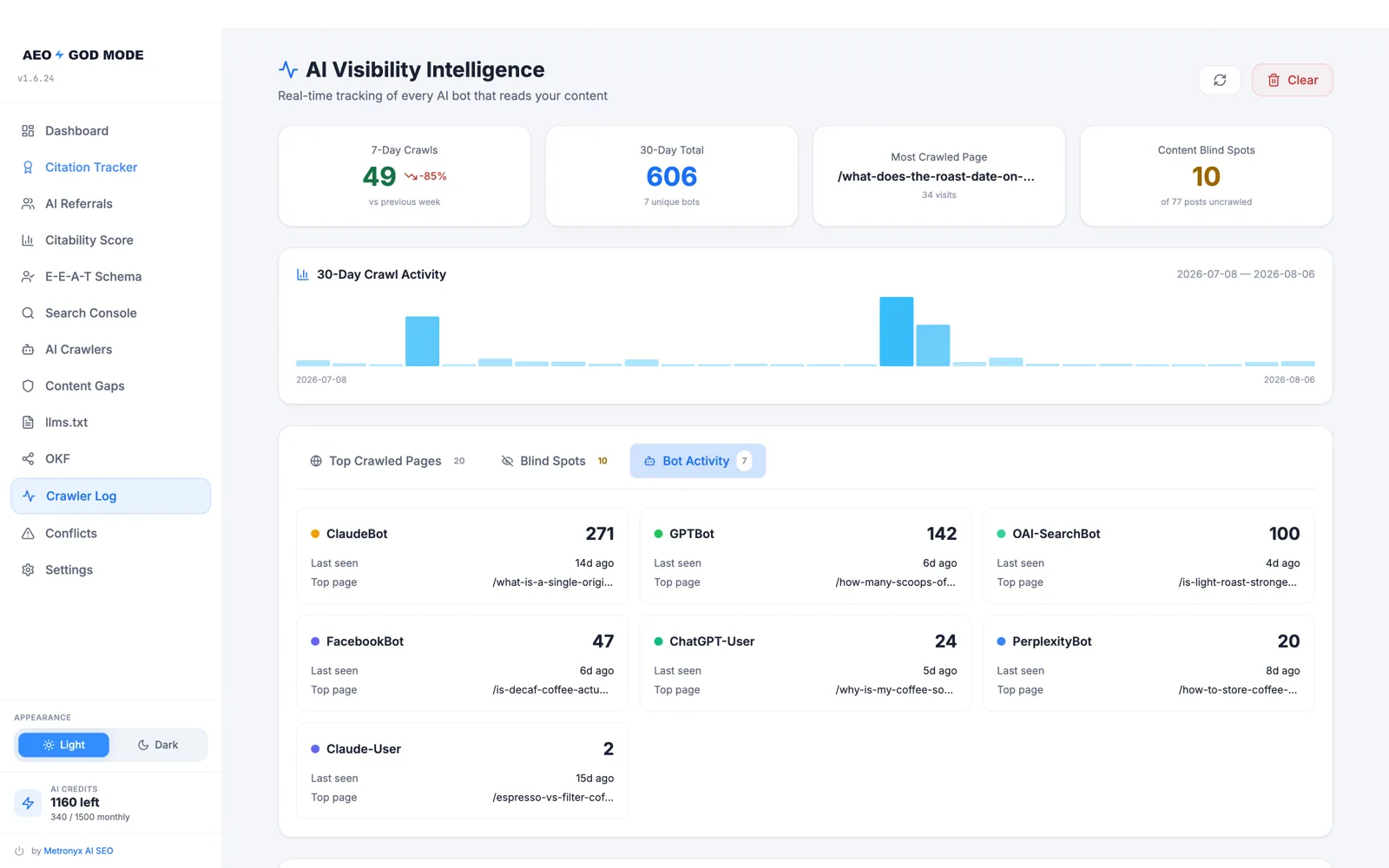
How do WordPress AI crawler logs show whether bots can access your content?
A bot can access your content when the log shows it received the page successfully, not a block page or error. If the same crawler only gets denied, redirected, or served thin output, access is limited or failing.
This is where log reading becomes practical. A successful request to a page with the main text in the HTML is much more useful than a request that ends on a login screen, a cookie wall, or a template with little visible content. The server may say the page loaded, but the bot still may not have the actual article body.
AI Content Analysis can help you compare what is published with what a crawler is likely to see, which matters when the log suggests access is possible but the content still does not seem to be the thing the bot needs. When logs and page output do not match, the problem is often not the bot name, but the content the bot can reach after the request.
A good rule is to treat a clean 200 response as necessary, not sufficient. If the page returns a shell with most of the text injected later, or if the page renders differently for bots, the log may look fine while access is still weak.
ai crawler compatibility: what to check when a bot cannot read the page
Check whether the page depends on JavaScript, blocked resources, or login-only content. If a crawler can reach the URL but still cannot see the main text, the issue is often rendering, access rules, or missing content in the HTML.
Some pages look complete to a human browser but are thin for crawlers because the main copy loads after scripts run. In that case, the log may show a normal request, but the bot never gets the part of the page you care about. The article on JavaScript Rendering for AI: Why 69% of Bots Ignore Your Content is a good companion piece if you want to understand why that happens.
Another check is resource access. If important files, images, or scripts are blocked, the page may not render as intended for a bot. Login gates can create the same problem, because a crawler may technically reach the URL while still being shut out of the content area.
For compatibility work, you want to ask one question: can the crawler fetch the same meaningful page that a reader would need? If the answer is no, fix the page delivery before worrying about more AI features or more frequent crawling.
How to use WordPress AI crawler logs to fix access problems
Once you spot a failed crawl, match it to the page type and fix the source of the problem, such as robots rules, redirects, access controls, or rendering issues. Then recheck the logs to confirm the bot now gets a clean page response.
Start with the easiest fix first. If the problem is a bad redirect, correct the destination. If the problem is a 403, review the access rule that caused the denial. If the problem is a page that loads only after scripts run, make sure the key text is present in the HTML that gets delivered.
When you are not sure whether the bot is reading the same thing a visitor sees, compare the live page with the crawl entry and with any content rules you have set. The AI Crawler Log gives you the request trail, while the page itself tells you whether the content is actually there to be read.
The point is not to make every bot happy. It is to make sure the pages that matter can be reached, rendered, and understood without avoidable friction.
How to turn WordPress AI crawler logs into content decisions
Use the logs to find pages bots reach often, pages they miss, and pages that need clearer internal links. That makes it easier to decide what to improve next, especially when you want to spot gaps and priority pages.
Logs are most useful when they guide editing, not just troubleshooting. If bots visit one section repeatedly and skip another, that can point to weak internal linking, thin topical coverage, or a page that should be easier to discover from the rest of the site. The Content Gap Scanner can help turn that pattern into a clearer list of pages and topics to work on.
Good logs also show where your site already performs well. Those pages are candidates for stronger supporting links, tighter summaries, and better question-led headings. Pages that bots visit but do not seem to quote may need cleaner copy, clearer structure, or a better answer to the query they are meant to serve.
Used this way, WordPress AI crawler logs become a decision tool. They tell you what AI systems can reach today, what they are likely skipping, and which pages deserve attention next.
Frequently Asked Questions
They are the server records that show which AI bots visited your WordPress site, what they requested, and whether the request succeeded. They usually include the crawler name, requested URL, time, and response. That makes them useful for checking both access and page delivery.What are WordPress AI crawler logs?
To read AI crawler logs in WordPress, find the bot entry, check the URL and response code, then confirm whether the page content was actually reachable. A 200 response is a good start, but you still want to know whether the bot got the main content or only a shell of the page. If you see repeated 403s, 404s, or redirects, something is getting in the way.How do I read logi crawlerów ai wordpress?
It means checking whether an AI bot can fetch and understand your page as served, including any JavaScript, access rules, or blocked files. A page can look fine in a browser and still be poor for a crawler if the important text is not present in the HTML. Compatibility is about what the bot can actually use, not just whether it reached the URL.What does ai crawler compatibility mean?
Look at the response code and request path, because a block usually shows a denied or error response, while ignoring often means no request ever reached that page. If the bot requested the URL and got a 403, 401, or a similar denial, the block is likely on your side. If there is no request at all, the issue may be discovery, linking, or crawl priority.How can I tell if an AI bot was blocked or just ignored the page?
Check the bot name, requested URL, and status code first, because those three items tell you the fastest story about access and crawl quality. After that, look for repeat patterns across multiple requests, since a single line can be misleading. The same bot hitting several pages cleanly is more useful than one isolated entry.What should I check first in a crawler log?
Compare the log entry with the page response and ask whether the main text is present without a browser doing extra work. If the page depends on heavy JavaScript, login access, or blocked resources, the bot may miss the part that matters. A clean response code is good, but visible content in the delivered HTML is what really counts.How do I know whether a bot can see my actual content?