What You Need
To connect Google Search Console, you need a Google account that has access to at least one GSC property. You will create OAuth 2.0 credentials in the Google Cloud Console and paste them into the plugin settings.
This is a Pro feature. Make sure your license is activated before starting.
Step 1: Create a Google Cloud Project
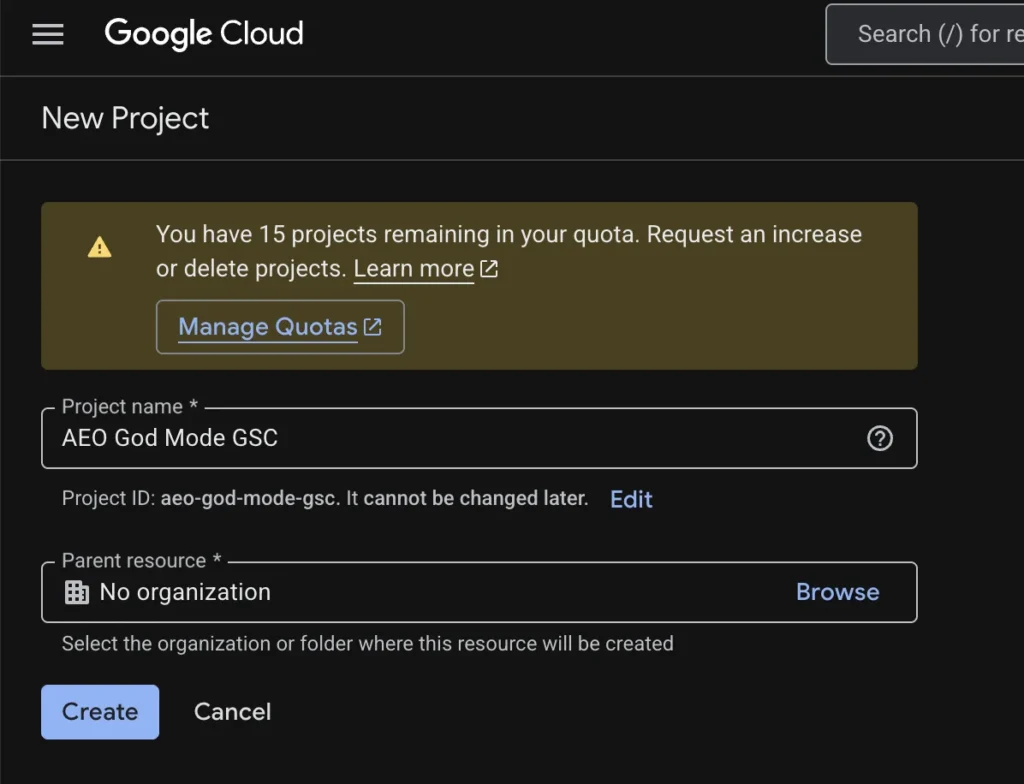
- Go to console.cloud.google.com
- Click the project dropdown at the top left and select New Project
- Name it something like
AEO God Mode GSC - Click Create and wait for it to finish
Step 2: Enable the Search Console API
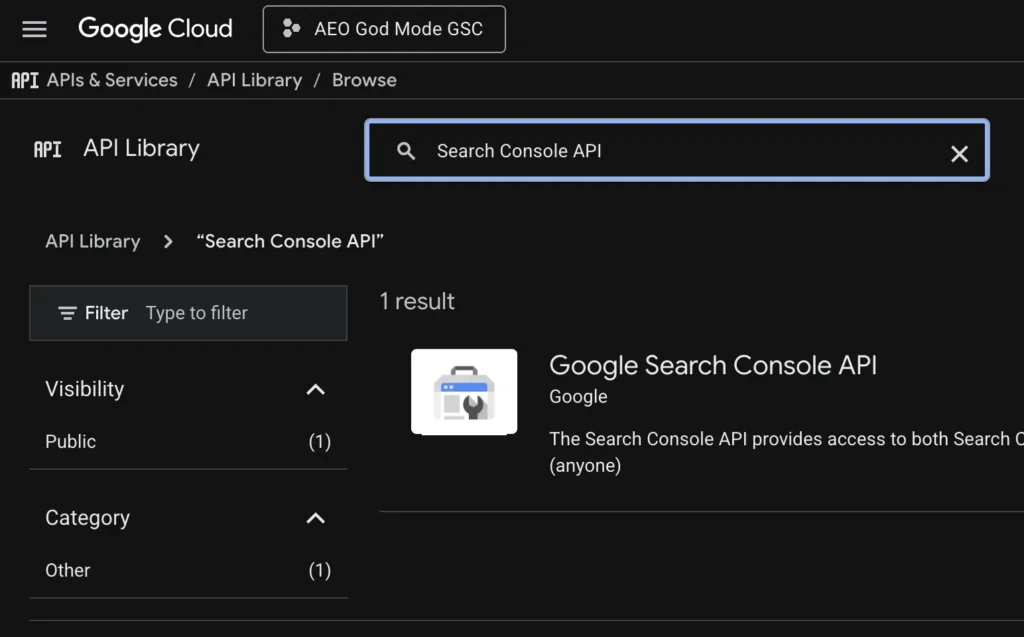
- With your new project selected, go to APIs & Services → Library
- Search for
Google Search Console API - Click it and press Enable
Step 3: Create OAuth 2.0 Credentials
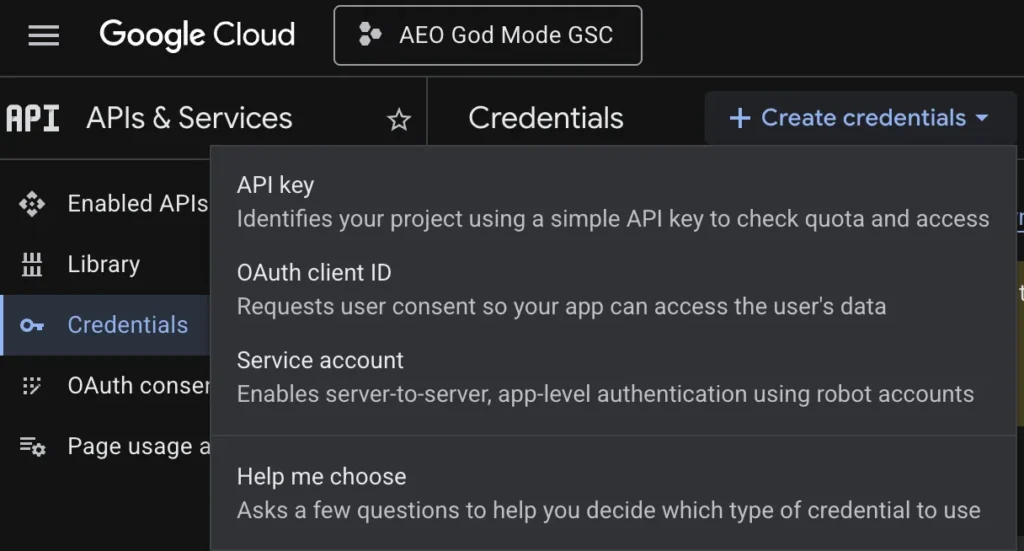
- Go to APIs & Services → Credentials
- Click + Create Credentials → OAuth client ID
- If prompted, configure the OAuth consent screen first:
- Select External user type
- Fill in the app name (e.g.
AEO God Mode) - Add your email as the support and developer email
- Save and continue through the scopes and test users pages
- Back on the Create OAuth Client ID page, select Web application
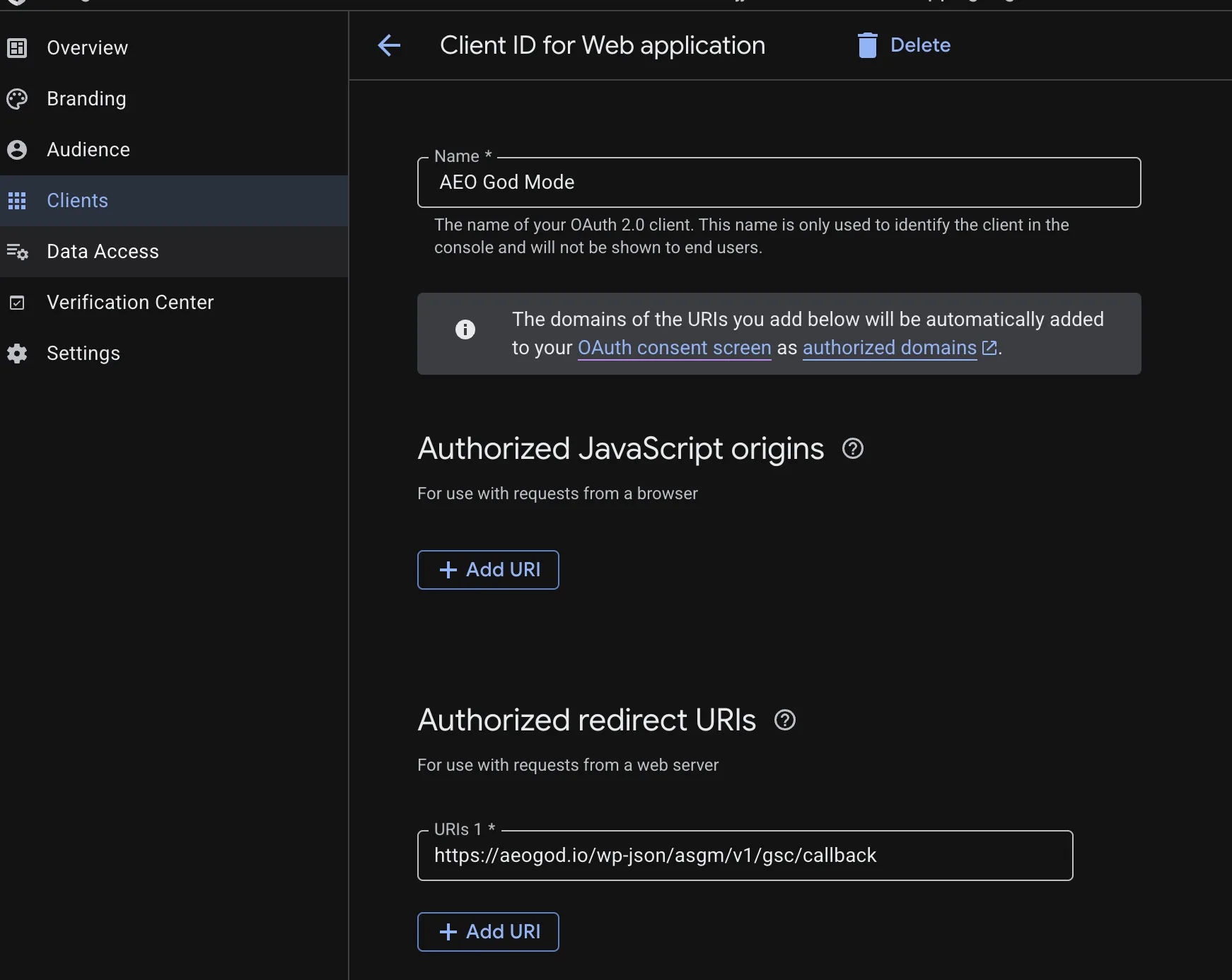
- Name it
AEO God Mode - Under Authorized redirect URIs, add:
https://yourdomain.com/wp-json/aeo-god-mode/v1/gsc/callback
(Replaceyourdomain.comwith your actual site URL) - Click Create
Step 4: Copy Your Credentials
After creating the OAuth client, Google shows you the Client ID and Client Secret. Copy both values.
Keep your Client Secret safe. Treat it like a password.
Step 5: Paste into AEO God Mode
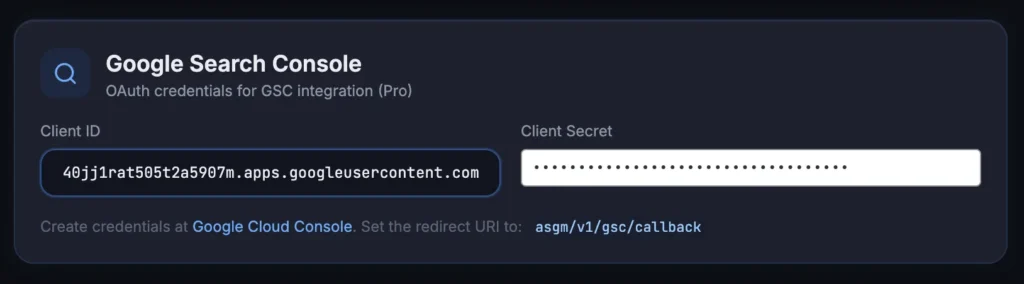
- In your WordPress dashboard, go to AEO God Mode → Settings
- Scroll to the Google Search Console section
- Paste your Client ID into the Client ID field
- Paste your Client Secret into the Client Secret field
- Click Save
Step 6: Authorize the Connection
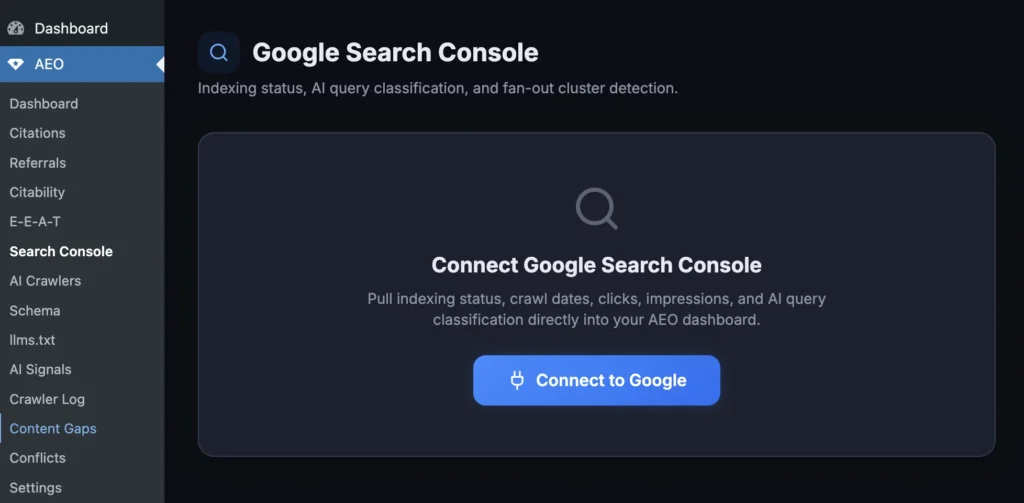
- Go to AEO God Mode → Search Console in the sidebar
- Click Connect Google Search Console
- You will be redirected to Google to authorize access
- Select the Google account that owns your Search Console property
- Grant the requested permissions
- You will be redirected back to your site
Once connected, the Search Console page will show your properties, performance data, and AI query analysis.
Troubleshooting
Redirect URI Mismatch
If you see a redirect_uri_mismatch error, double-check that the redirect URI in Google Cloud Console exactly matches:
https://yourdomain.com/wp-json/aeo-god-mode/v1/gsc/callbackCommon mistakes: missing https://, extra trailing slash, or using www when your site does not.
API Not Enabled
If the connection fails silently, go back to Google Cloud Console and confirm the Search Console API is enabled under APIs & Services → Enabled APIs.