You opened the Crawler Log in AEO God Mode, saw visits from GPTBot, ClaudeBot, or PerplexityBot, and thought: “I never allowed these bots. Why are they crawling my site?”
Short answer: AI bots crawl the open web by default. Your allowlist controls whether your robots.txt file explicitly permits or blocks them. It does not act as a gate that lets bots in. Bots are already out there scanning the internet, and they will visit your site whether you’ve configured anything or not.
- AI bots crawl the web by default. You don’t need to “invite” them.
- The AEO God Mode allowlist controls your `robots.txt` rules for each bot, not whether bots can physically reach your server.
- `robots.txt` is a polite request, not a firewall. Well-behaved bots honor it. Others may not.
- To hard-block bots at the network level, use Cloudflare’s Bot Management or a server-side firewall.
- If your goal is AI visibility, leave the bots allowed. Blocking them means AI engines can’t read your content.
How AI Crawlers Actually Work
When OpenAI, Anthropic, Perplexity, Google, or any other AI company wants to train models or power their search features, they deploy web crawlers. These crawlers work the same way Googlebot has worked for decades: they follow links, read pages, and index content.
Here’s the sequence:
- The bot discovers your URL through links on other sites, sitemaps, or its own internal queue.
- It checks your
robots.txtto see if you’ve blocked its user-agent. - If not blocked, it fetches the page. If blocked, a well-behaved bot will respect the directive and skip it.
- AEO God Mode detects the visit by matching the request’s user-agent string against its list of 18 known AI crawler patterns, then logs it.
The key takeaway: step 1 happens regardless of what you’ve configured. The bot already decided to visit. Your robots.txt is just a set of instructions it reads when it arrives.
What the Allowlist Actually Does
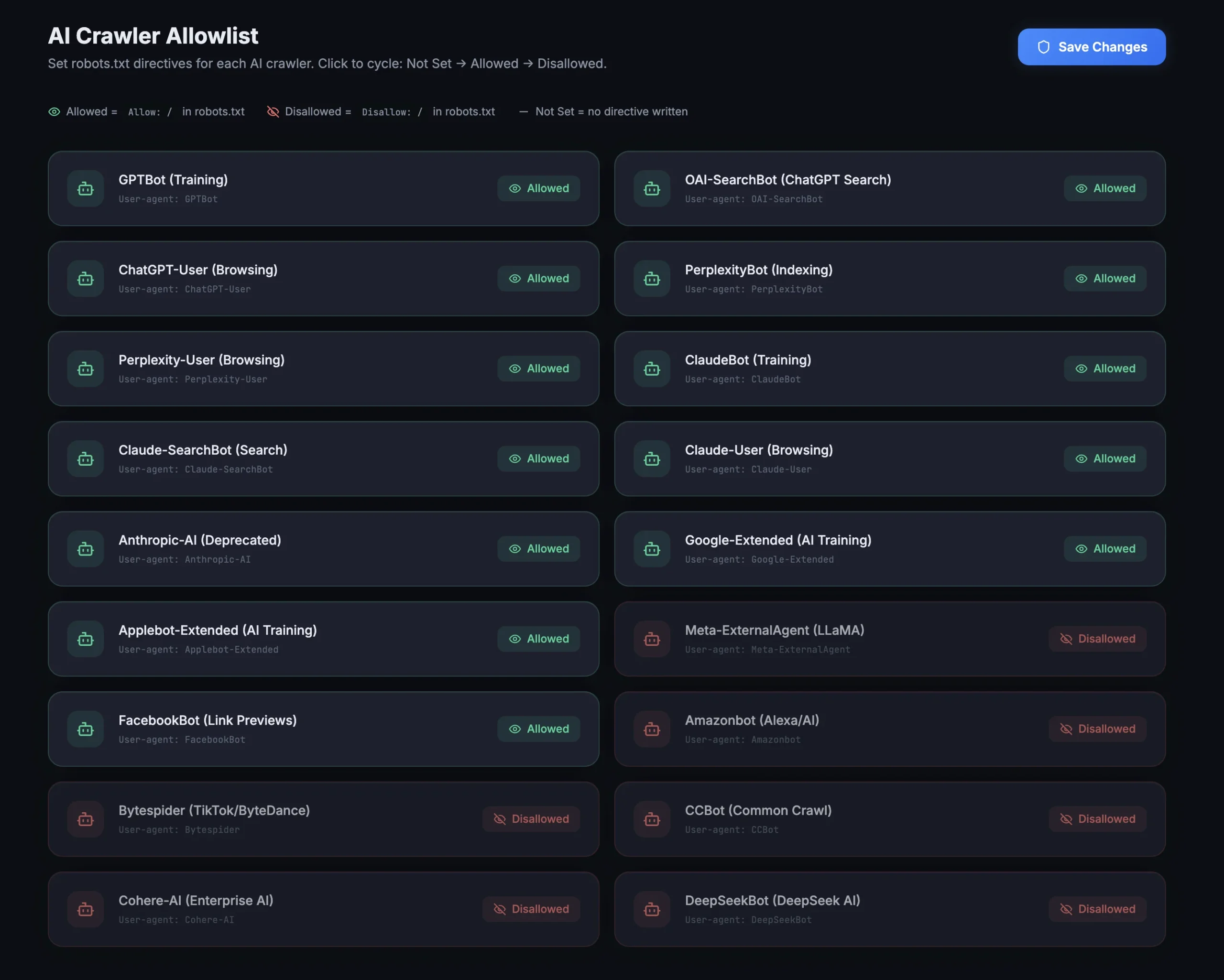
The AI Crawler Allowlist in AEO God Mode manages your robots.txt directives for each AI bot. Each bot has three possible states:
Allowed writes this to your robots.txt:
User-agent: GPTBot
Allow: /
Disallowed writes this:
User-agent: GPTBot
Disallow: /
Not Set writes nothing. The bot falls under your wildcard User-agent: * rules, which typically allow crawling by default.
This means:
- Allowing a bot tells it: “You’re welcome to crawl everything.”
- Disallowing a bot tells it: “Please don’t crawl anything.” The bot should honor this, but
robots.txtcompliance is voluntary. - Not Set means no rule is written for that bot at all. It follows whatever your existing wildcard rules say.
None of these options prevent the bot from reaching your server. They only tell the bot what it should do once it arrives.
Why Bots Appear Even When Set to “Disallow”
There are a few reasons you might see visits from a bot you’ve disallowed:
1. The Bot Checked robots.txt (Which Is Also a Visit)
When a bot visits your robots.txt file to read its rules, that request itself gets logged. AEO God Mode logs the URL /robots.txt alongside the bot name. So a “visit” from GPTBot doesn’t always mean it crawled your content. Check the URL column in your log. If every entry shows /robots.txt, the bot is reading your rules and leaving.
2. The Bot Hasn’t Re-Fetched Your robots.txt Yet
Bots cache your robots.txt file. Most AI crawlers refresh their cache every few hours to every few days. If you just changed a bot from “Allow” to “Disallow,” it may take time for the bot to pick up the new rule. Wait 24-48 hours and check again.
3. The Bot Doesn’t Fully Honor robots.txt
robots.txt is a protocol built on trust, not enforcement. Major crawlers from OpenAI, Google, Anthropic, and Perplexity generally honor it. Smaller or less established bots (Bytespider, CCBot, some regional crawlers) may not always comply. If a bot ignores your robots.txt, the only way to stop it is at the server or network level.
4. A CDN or Proxy Is Serving Cached Pages
If you’re using a CDN, cached versions of your pages may be served to bots before the origin server even processes the request. The CDN might not apply robots.txt logic at all. This is expected behavior and doesn’t mean your rules are broken.
The Difference Between “Should Not Crawl” and “Cannot Crawl”
| Method | What It Does | Enforcement Level |
|---|---|---|
| robots.txt (Allow/Disallow) | Sends a polite directive to the bot | Voluntary. Bot chooses to comply. |
| HTTP 403/401 response | Server refuses to serve the page | Server-level. Blocks the request. |
| IP blocking (firewall) | Drops the connection before the request reaches your site | Network-level. Bot can’t connect. |
| Cloudflare Bot Management | Identifies, challenges, or blocks bots using behavior analysis | Network-level with intelligence. |
AEO God Mode handles the first method. For harder enforcement, you need a firewall or a service like Cloudflare.
When to Block vs. When to Allow
Allow bots if you want AI visibility. If your goal is to appear in ChatGPT answers, Perplexity citations, Google AI Overviews, or Claude responses, you need these bots to read your content. Blocking them means AI engines have no way to include your site in their outputs.
Block bots if you want to protect proprietary content. If you run a paywall, have exclusive research, or don’t want your content used for AI training, disallowing specific crawlers through robots.txt is a reasonable first step. For stronger protection, combine it with server-level blocking.
Using Cloudflare for Advanced Bot Management
If you need control beyond robots.txt, Cloudflare provides the most practical solution for WordPress sites.
What Cloudflare Bot Management Can Do
- Rate limiting per bot: Cap how many requests a specific crawler can make per minute or hour. Useful if a bot is hammering your server with thousands of requests.
- Challenge suspicious bots: Force bots to pass a JavaScript challenge before accessing your site. Real crawlers with proper identification pass. Scrapers and impersonators fail.
- Block by user-agent pattern: Create firewall rules that return a 403 for any user-agent matching a specific string, regardless of
robots.txt. - Block by IP range: AI companies publish the IP ranges their crawlers use. Cloudflare lets you block these at the edge before requests reach your server.
- Bot Score filtering: Cloudflare assigns a score (1-99) to every request based on behavior patterns. Low scores indicate automated traffic. You can set thresholds for blocking or challenging.
How to Set It Up
- Add your site to Cloudflare (free plan works for basic rules)
- Go to Security > WAF > Custom Rules
- Create a rule matching the bot’s user-agent:
– Field: User Agent
– Operator: contains
– Value: GPTBot (or any bot you want to manage)
– Action: Block or Managed Challenge
- For rate limiting, go to Security > WAF > Rate Limiting Rules:
– Match requests where User Agent contains the bot name
– Set a threshold (e.g., 100 requests per 10 minutes)
– Action: Block for the remaining period
Cloudflare Plans and Bot Features
| Feature | Free Plan | Pro ($20/mo) | Business ($200/mo) |
|---|---|---|---|
| Basic firewall rules (5) | ✅ | ✅ | ✅ |
| Rate limiting | ❌ | ✅ | ✅ |
| Bot Fight Mode | ✅ | ✅ | ✅ |
| Super Bot Fight Mode | ❌ | ✅ | ✅ |
| Bot Analytics | ❌ | ❌ | ✅ |
For most WordPress sites, the Pro plan provides enough control to manage AI crawlers effectively.
Recommended Cloudflare Rules for AI Crawlers
Block training-only crawlers at the edge:
- User Agent contains
CCBot→ Block - User Agent contains
Bytespider→ Block - User Agent contains
Meta-ExternalAgent→ Block
Rate limit aggressive crawlers:
- User Agent contains
GPTBot→ 60 requests per minute max - User Agent contains
ClaudeBot→ 60 requests per minute max
Allow search crawlers through:
- User Agent contains
OAI-SearchBot→ Allow - User Agent contains
PerplexityBot→ Allow - User Agent contains
ChatGPT-User→ Allow
This setup lets AI search engines read and cite your content while preventing mass training crawls from consuming your server resources.
Summary
AI bots visit your site because they crawl the open web. The allowlist in AEO God Mode controls your robots.txt signals, which tell bots what you’d prefer they do. Well-behaved bots respect those signals. For bots that don’t, or for situations where you need hard enforcement, Cloudflare’s firewall and rate limiting tools give you network-level control.
If your goal is AI visibility and getting cited in AI-generated answers, keep the search-oriented crawlers allowed. The Crawler Log in AEO God Mode shows you exactly which bots are visiting, how often, and which pages they’re reading, so you can make informed decisions about what to allow and what to block.
Frequently Asked Questions
Will blocking AI bots hurt my Google search rankings?
No. Google Search uses Googlebot, which is separate from Google-Extended (the AI training crawler). Blocking Google-Extended only prevents your content from being used for Gemini training. It does not affect your search rankings or indexation.
Can I allow a bot for specific pages and block it for others?
Yes. The robots.txt protocol supports path-based rules. AEO God Mode currently sets site-wide Allow or Disallow per bot. For path-specific rules, you can manually edit your robots.txt or use Cloudflare’s WAF rules to allow the bot on certain URLs and block it on others.
Do AI bots follow the same rules as Googlebot?
Most do, but not all. OpenAI’s GPTBot, ChatGPT-User, and OAI-SearchBot are well-documented and generally respect robots.txt. Anthropic’s ClaudeBot and Claude-SearchBot also comply. Smaller crawlers like Bytespider (ByteDance) and CCBot (Common Crawl) have a less consistent track record.
Why does the Crawler Log show visits to /robots.txt?
Every compliant bot checks your robots.txt before crawling any other page. This check itself is a request that gets logged. If you see a bot visiting only /robots.txt and no other URLs, it means the bot read your rules and decided to leave (likely because you set it to Disallow).
Is the AEO God Mode Crawler Log slowing down my site?
No. The log fires a single lightweight database write only when an AI bot is detected. Normal visitor requests are not logged. The detection runs early in the WordPress lifecycle and adds no measurable overhead to page load times.
What’s the difference between the Crawler Log and the Allowlist?
The Allowlist controls what rules appear in your robots.txt for each AI bot. The Crawler Log records actual bot visits as they happen. They work together: the Allowlist sets your policy, and the Crawler Log shows you whether bots are following it.